ストップウォッチ
スタート・ストップ・リセット機能付きストップウォッチ。after()メソッドによる定期処理の実装を学びます。
1. アプリ概要
スタート・ストップ・リセット機能付きストップウォッチ。after()メソッドによる定期処理の実装を学びます。
このアプリはツールカテゴリに分類される実践的なGUIアプリです。使用ライブラリは tkinter(標準ライブラリ) で、難易度は ★☆☆ です。
Pythonでは tkinter を使うことで、クロスプラットフォームなGUIアプリを簡単に作成できます。このアプリを通じて、ウィジェットの配置・イベント処理・データ管理など、GUI開発の実践的なスキルを習得できます。
ソースコードは完全な動作状態で提供しており、コピーしてそのまま実行できます。まずは実行して動作を確認し、その後コードを読んで仕組みを理解していきましょう。カスタマイズセクションでは機能拡張のアイデアも紹介しています。
GUIアプリ開発は、プログラミングの楽しさを実感できる最も効果的な学習方法のひとつです。アプリを作ることで、変数・関数・クラス・イベント処理など、プログラミングの重要な概念が自然と身についていきます。このアプリをきっかけに、オリジナルアプリの開発にも挑戦してみてください。
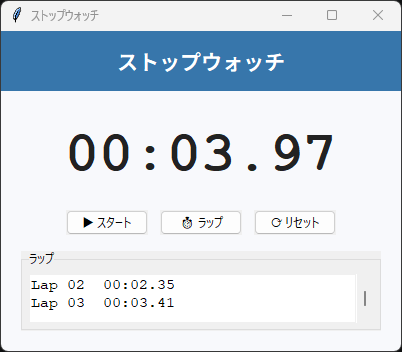
2. 機能一覧
- ストップウォッチのメイン機能
- 直感的なGUIインターフェース
- 入力値のバリデーション
- エラーハンドリング
- 結果の見やすい表示
- キーボードショートカット対応
3. 事前準備・環境
Python 3.10 以上 / Windows・Mac・Linux すべて対応
以下の環境で動作確認しています。
- Python 3.10 以上
- OS: Windows 10/11・macOS 12+・Ubuntu 20.04+
4. 完全なソースコード
右上の「コピー」ボタンをクリックするとコードをクリップボードにコピーできます。
import tkinter as tk
from tkinter import ttk


class App06:
    """ストップウォッチ"""

    def __init__(self, root):
        self.root = root
        self.root.title("ストップウォッチ")
        self.root.geometry("400x320")
        self.root.configure(bg="#f8f9fc")
        self.running = False
        self.elapsed = 0  # ミリ秒
        self._after_id = None
        self._build_ui()

    def _build_ui(self):
        title_frame = tk.Frame(self.root, bg="#3776ab", pady=12)
        title_frame.pack(fill=tk.X)
        tk.Label(title_frame, text="ストップウォッチ",
                 font=("Noto Sans JP", 16, "bold"),
                 bg="#3776ab", fg="white").pack()

        main_frame = tk.Frame(self.root, bg="#f8f9fc", padx=20, pady=20)
        main_frame.pack(fill=tk.BOTH, expand=True)

        # 時刻表示
        self.time_label = tk.Label(main_frame, text="00:00.00",
                                   font=("Courier", 42, "bold"),
                                   bg="#f8f9fc", fg="#222")
        self.time_label.pack(pady=(10, 20))

        # ボタン(スタート/ラップ/リセットを横並び)
        btn_frame = tk.Frame(main_frame, bg="#f8f9fc")
        btn_frame.pack()
        self.start_btn = ttk.Button(btn_frame, text="▶ スタート",
                                    command=self.start_stop, width=12)
        self.start_btn.grid(row=0, column=0, padx=6)
        self.lap_btn = ttk.Button(btn_frame, text="⏱ ラップ",
                                  command=self.record_lap, width=12)
        self.lap_btn.grid(row=0, column=1, padx=6)
        ttk.Button(btn_frame, text="⟳ リセット",
                   command=self.reset, width=12).grid(row=0, column=2, padx=6)

        # ラップ一覧
        lap_frame = ttk.LabelFrame(main_frame, text="ラップ", padding=6)
        lap_frame.pack(fill=tk.BOTH, expand=True, pady=(16, 0))
        self.lap_listbox = tk.Listbox(lap_frame, font=("Courier", 11),
                                      bg="white", relief=tk.FLAT, height=4)
        self.lap_listbox.pack(side=tk.LEFT, fill=tk.BOTH, expand=True)
        scrollbar = ttk.Scrollbar(lap_frame, command=self.lap_listbox.yview)
        self.lap_listbox.configure(yscrollcommand=scrollbar.set)
        scrollbar.pack(side=tk.RIGHT, fill=tk.Y)
        self.lap_count = 0

    def start_stop(self):
        if self.running:
            self.running = False
            self.start_btn.config(text="▶ スタート")
            if self._after_id:
                self.root.after_cancel(self._after_id)
        else:
            self.running = True
            self.start_btn.config(text="⏸ ストップ")
            self._last_tick = self.root.tk.call("clock", "milliseconds")
            self._tick()

    def _tick(self):
        if not self.running:
            return
        now = self.root.tk.call("clock", "milliseconds")
        self.elapsed += now - self._last_tick
        self._last_tick = now
        self._update_display()
        self._after_id = self.root.after(10, self._tick)

    def _update_display(self):
        total_cs = self.elapsed // 10
        minutes = total_cs // 6000
        seconds = (total_cs % 6000) // 100
        centiseconds = total_cs % 100
        self.time_label.config(text=f"{minutes:02d}:{seconds:02d}.{centiseconds:02d}")

    def record_lap(self):
        if self.elapsed == 0:
            return
        self.lap_count += 1
        total_cs = self.elapsed // 10
        minutes = total_cs // 6000
        seconds = (total_cs % 6000) // 100
        centiseconds = total_cs % 100
        self.lap_listbox.insert(tk.END, f"Lap {self.lap_count:02d}  {minutes:02d}:{seconds:02d}.{centiseconds:02d}")
        self.lap_listbox.see(tk.END)

    def reset(self):
        self.running = False
        if self._after_id:
            self.root.after_cancel(self._after_id)
        self.elapsed = 0
        self.start_btn.config(text="▶ スタート")
        self.time_label.config(text="00:00.00")
        self.lap_listbox.delete(0, tk.END)
        self.lap_count = 0


if __name__ == "__main__":
    root = tk.Tk()
    app = App06(root)
    root.mainloop()
5. コード解説
ストップウォッチのコードを詳しく解説します。クラスベースの設計で各機能を整理して実装しています。
クラス設計とコンストラクタ
App06クラスにアプリの全機能をまとめています。__init__メソッドでウィンドウの基本設定を行い、_build_ui()でUI構築、process()でメイン処理を担当します。この分離により、各メソッドの責任が明確になりコードが読みやすくなります。
import tkinter as tk
from tkinter import ttk


class App06:
    """ストップウォッチ"""

    def __init__(self, root):
        self.root = root
        self.root.title("ストップウォッチ")
        self.root.geometry("400x320")
        self.root.configure(bg="#f8f9fc")
        self.running = False
        self.elapsed = 0  # ミリ秒
        self._after_id = None
        self._build_ui()

    def _build_ui(self):
        title_frame = tk.Frame(self.root, bg="#3776ab", pady=12)
        title_frame.pack(fill=tk.X)
        tk.Label(title_frame, text="ストップウォッチ",
                 font=("Noto Sans JP", 16, "bold"),
                 bg="#3776ab", fg="white").pack()

        main_frame = tk.Frame(self.root, bg="#f8f9fc", padx=20, pady=20)
        main_frame.pack(fill=tk.BOTH, expand=True)

        # 時刻表示
        self.time_label = tk.Label(main_frame, text="00:00.00",
                                   font=("Courier", 42, "bold"),
                                   bg="#f8f9fc", fg="#222")
        self.time_label.pack(pady=(10, 20))

        # ボタン(スタート/ラップ/リセットを横並び)
        btn_frame = tk.Frame(main_frame, bg="#f8f9fc")
        btn_frame.pack()
        self.start_btn = ttk.Button(btn_frame, text="▶ スタート",
                                    command=self.start_stop, width=12)
        self.start_btn.grid(row=0, column=0, padx=6)
        self.lap_btn = ttk.Button(btn_frame, text="⏱ ラップ",
                                  command=self.record_lap, width=12)
        self.lap_btn.grid(row=0, column=1, padx=6)
        ttk.Button(btn_frame, text="⟳ リセット",
                   command=self.reset, width=12).grid(row=0, column=2, padx=6)

        # ラップ一覧
        lap_frame = ttk.LabelFrame(main_frame, text="ラップ", padding=6)
        lap_frame.pack(fill=tk.BOTH, expand=True, pady=(16, 0))
        self.lap_listbox = tk.Listbox(lap_frame, font=("Courier", 11),
                                      bg="white", relief=tk.FLAT, height=4)
        self.lap_listbox.pack(side=tk.LEFT, fill=tk.BOTH, expand=True)
        scrollbar = ttk.Scrollbar(lap_frame, command=self.lap_listbox.yview)
        self.lap_listbox.configure(yscrollcommand=scrollbar.set)
        scrollbar.pack(side=tk.RIGHT, fill=tk.Y)
        self.lap_count = 0

    def start_stop(self):
        if self.running:
            self.running = False
            self.start_btn.config(text="▶ スタート")
            if self._after_id:
                self.root.after_cancel(self._after_id)
        else:
            self.running = True
            self.start_btn.config(text="⏸ ストップ")
            self._last_tick = self.root.tk.call("clock", "milliseconds")
            self._tick()

    def _tick(self):
        if not self.running:
            return
        now = self.root.tk.call("clock", "milliseconds")
        self.elapsed += now - self._last_tick
        self._last_tick = now
        self._update_display()
        self._after_id = self.root.after(10, self._tick)

    def _update_display(self):
        total_cs = self.elapsed // 10
        minutes = total_cs // 6000
        seconds = (total_cs % 6000) // 100
        centiseconds = total_cs % 100
        self.time_label.config(text=f"{minutes:02d}:{seconds:02d}.{centiseconds:02d}")

    def record_lap(self):
        if self.elapsed == 0:
            return
        self.lap_count += 1
        total_cs = self.elapsed // 10
        minutes = total_cs // 6000
        seconds = (total_cs % 6000) // 100
        centiseconds = total_cs % 100
        self.lap_listbox.insert(tk.END, f"Lap {self.lap_count:02d}  {minutes:02d}:{seconds:02d}.{centiseconds:02d}")
        self.lap_listbox.see(tk.END)

    def reset(self):
        self.running = False
        if self._after_id:
            self.root.after_cancel(self._after_id)
        self.elapsed = 0
        self.start_btn.config(text="▶ スタート")
        self.time_label.config(text="00:00.00")
        self.lap_listbox.delete(0, tk.END)
        self.lap_count = 0


if __name__ == "__main__":
    root = tk.Tk()
    app = App06(root)
    root.mainloop()
LabelFrameによるセクション分け
ttk.LabelFrame を使うことで、入力エリアと結果エリアを視覚的に分けられます。padding引数でフレーム内の余白を設定し、見やすいレイアウトを実現しています。
import tkinter as tk
from tkinter import ttk


class App06:
    """ストップウォッチ"""

    def __init__(self, root):
        self.root = root
        self.root.title("ストップウォッチ")
        self.root.geometry("400x320")
        self.root.configure(bg="#f8f9fc")
        self.running = False
        self.elapsed = 0  # ミリ秒
        self._after_id = None
        self._build_ui()

    def _build_ui(self):
        title_frame = tk.Frame(self.root, bg="#3776ab", pady=12)
        title_frame.pack(fill=tk.X)
        tk.Label(title_frame, text="ストップウォッチ",
                 font=("Noto Sans JP", 16, "bold"),
                 bg="#3776ab", fg="white").pack()

        main_frame = tk.Frame(self.root, bg="#f8f9fc", padx=20, pady=20)
        main_frame.pack(fill=tk.BOTH, expand=True)

        # 時刻表示
        self.time_label = tk.Label(main_frame, text="00:00.00",
                                   font=("Courier", 42, "bold"),
                                   bg="#f8f9fc", fg="#222")
        self.time_label.pack(pady=(10, 20))

        # ボタン(スタート/ラップ/リセットを横並び)
        btn_frame = tk.Frame(main_frame, bg="#f8f9fc")
        btn_frame.pack()
        self.start_btn = ttk.Button(btn_frame, text="▶ スタート",
                                    command=self.start_stop, width=12)
        self.start_btn.grid(row=0, column=0, padx=6)
        self.lap_btn = ttk.Button(btn_frame, text="⏱ ラップ",
                                  command=self.record_lap, width=12)
        self.lap_btn.grid(row=0, column=1, padx=6)
        ttk.Button(btn_frame, text="⟳ リセット",
                   command=self.reset, width=12).grid(row=0, column=2, padx=6)

        # ラップ一覧
        lap_frame = ttk.LabelFrame(main_frame, text="ラップ", padding=6)
        lap_frame.pack(fill=tk.BOTH, expand=True, pady=(16, 0))
        self.lap_listbox = tk.Listbox(lap_frame, font=("Courier", 11),
                                      bg="white", relief=tk.FLAT, height=4)
        self.lap_listbox.pack(side=tk.LEFT, fill=tk.BOTH, expand=True)
        scrollbar = ttk.Scrollbar(lap_frame, command=self.lap_listbox.yview)
        self.lap_listbox.configure(yscrollcommand=scrollbar.set)
        scrollbar.pack(side=tk.RIGHT, fill=tk.Y)
        self.lap_count = 0

    def start_stop(self):
        if self.running:
            self.running = False
            self.start_btn.config(text="▶ スタート")
            if self._after_id:
                self.root.after_cancel(self._after_id)
        else:
            self.running = True
            self.start_btn.config(text="⏸ ストップ")
            self._last_tick = self.root.tk.call("clock", "milliseconds")
            self._tick()

    def _tick(self):
        if not self.running:
            return
        now = self.root.tk.call("clock", "milliseconds")
        self.elapsed += now - self._last_tick
        self._last_tick = now
        self._update_display()
        self._after_id = self.root.after(10, self._tick)

    def _update_display(self):
        total_cs = self.elapsed // 10
        minutes = total_cs // 6000
        seconds = (total_cs % 6000) // 100
        centiseconds = total_cs % 100
        self.time_label.config(text=f"{minutes:02d}:{seconds:02d}.{centiseconds:02d}")

    def record_lap(self):
        if self.elapsed == 0:
            return
        self.lap_count += 1
        total_cs = self.elapsed // 10
        minutes = total_cs // 6000
        seconds = (total_cs % 6000) // 100
        centiseconds = total_cs % 100
        self.lap_listbox.insert(tk.END, f"Lap {self.lap_count:02d}  {minutes:02d}:{seconds:02d}.{centiseconds:02d}")
        self.lap_listbox.see(tk.END)

    def reset(self):
        self.running = False
        if self._after_id:
            self.root.after_cancel(self._after_id)
        self.elapsed = 0
        self.start_btn.config(text="▶ スタート")
        self.time_label.config(text="00:00.00")
        self.lap_listbox.delete(0, tk.END)
        self.lap_count = 0


if __name__ == "__main__":
    root = tk.Tk()
    app = App06(root)
    root.mainloop()
Entryウィジェットとイベントバインド
ttk.Entryで入力フィールドを作成します。bind('
import tkinter as tk
from tkinter import ttk


class App06:
    """ストップウォッチ"""

    def __init__(self, root):
        self.root = root
        self.root.title("ストップウォッチ")
        self.root.geometry("400x320")
        self.root.configure(bg="#f8f9fc")
        self.running = False
        self.elapsed = 0  # ミリ秒
        self._after_id = None
        self._build_ui()

    def _build_ui(self):
        title_frame = tk.Frame(self.root, bg="#3776ab", pady=12)
        title_frame.pack(fill=tk.X)
        tk.Label(title_frame, text="ストップウォッチ",
                 font=("Noto Sans JP", 16, "bold"),
                 bg="#3776ab", fg="white").pack()

        main_frame = tk.Frame(self.root, bg="#f8f9fc", padx=20, pady=20)
        main_frame.pack(fill=tk.BOTH, expand=True)

        # 時刻表示
        self.time_label = tk.Label(main_frame, text="00:00.00",
                                   font=("Courier", 42, "bold"),
                                   bg="#f8f9fc", fg="#222")
        self.time_label.pack(pady=(10, 20))

        # ボタン(スタート/ラップ/リセットを横並び)
        btn_frame = tk.Frame(main_frame, bg="#f8f9fc")
        btn_frame.pack()
        self.start_btn = ttk.Button(btn_frame, text="▶ スタート",
                                    command=self.start_stop, width=12)
        self.start_btn.grid(row=0, column=0, padx=6)
        self.lap_btn = ttk.Button(btn_frame, text="⏱ ラップ",
                                  command=self.record_lap, width=12)
        self.lap_btn.grid(row=0, column=1, padx=6)
        ttk.Button(btn_frame, text="⟳ リセット",
                   command=self.reset, width=12).grid(row=0, column=2, padx=6)

        # ラップ一覧
        lap_frame = ttk.LabelFrame(main_frame, text="ラップ", padding=6)
        lap_frame.pack(fill=tk.BOTH, expand=True, pady=(16, 0))
        self.lap_listbox = tk.Listbox(lap_frame, font=("Courier", 11),
                                      bg="white", relief=tk.FLAT, height=4)
        self.lap_listbox.pack(side=tk.LEFT, fill=tk.BOTH, expand=True)
        scrollbar = ttk.Scrollbar(lap_frame, command=self.lap_listbox.yview)
        self.lap_listbox.configure(yscrollcommand=scrollbar.set)
        scrollbar.pack(side=tk.RIGHT, fill=tk.Y)
        self.lap_count = 0

    def start_stop(self):
        if self.running:
            self.running = False
            self.start_btn.config(text="▶ スタート")
            if self._after_id:
                self.root.after_cancel(self._after_id)
        else:
            self.running = True
            self.start_btn.config(text="⏸ ストップ")
            self._last_tick = self.root.tk.call("clock", "milliseconds")
            self._tick()

    def _tick(self):
        if not self.running:
            return
        now = self.root.tk.call("clock", "milliseconds")
        self.elapsed += now - self._last_tick
        self._last_tick = now
        self._update_display()
        self._after_id = self.root.after(10, self._tick)

    def _update_display(self):
        total_cs = self.elapsed // 10
        minutes = total_cs // 6000
        seconds = (total_cs % 6000) // 100
        centiseconds = total_cs % 100
        self.time_label.config(text=f"{minutes:02d}:{seconds:02d}.{centiseconds:02d}")

    def record_lap(self):
        if self.elapsed == 0:
            return
        self.lap_count += 1
        total_cs = self.elapsed // 10
        minutes = total_cs // 6000
        seconds = (total_cs % 6000) // 100
        centiseconds = total_cs % 100
        self.lap_listbox.insert(tk.END, f"Lap {self.lap_count:02d}  {minutes:02d}:{seconds:02d}.{centiseconds:02d}")
        self.lap_listbox.see(tk.END)

    def reset(self):
        self.running = False
        if self._after_id:
            self.root.after_cancel(self._after_id)
        self.elapsed = 0
        self.start_btn.config(text="▶ スタート")
        self.time_label.config(text="00:00.00")
        self.lap_listbox.delete(0, tk.END)
        self.lap_count = 0


if __name__ == "__main__":
    root = tk.Tk()
    app = App06(root)
    root.mainloop()
Textウィジェットでの結果表示
結果表示にはtk.Textウィジェットを使います。state=tk.DISABLEDでユーザーが直接編集できないようにし、表示前にNORMALに切り替えてからinsert()で内容を更新します。
import tkinter as tk
from tkinter import ttk


class App06:
    """ストップウォッチ"""

    def __init__(self, root):
        self.root = root
        self.root.title("ストップウォッチ")
        self.root.geometry("400x320")
        self.root.configure(bg="#f8f9fc")
        self.running = False
        self.elapsed = 0  # ミリ秒
        self._after_id = None
        self._build_ui()

    def _build_ui(self):
        title_frame = tk.Frame(self.root, bg="#3776ab", pady=12)
        title_frame.pack(fill=tk.X)
        tk.Label(title_frame, text="ストップウォッチ",
                 font=("Noto Sans JP", 16, "bold"),
                 bg="#3776ab", fg="white").pack()

        main_frame = tk.Frame(self.root, bg="#f8f9fc", padx=20, pady=20)
        main_frame.pack(fill=tk.BOTH, expand=True)

        # 時刻表示
        self.time_label = tk.Label(main_frame, text="00:00.00",
                                   font=("Courier", 42, "bold"),
                                   bg="#f8f9fc", fg="#222")
        self.time_label.pack(pady=(10, 20))

        # ボタン(スタート/ラップ/リセットを横並び)
        btn_frame = tk.Frame(main_frame, bg="#f8f9fc")
        btn_frame.pack()
        self.start_btn = ttk.Button(btn_frame, text="▶ スタート",
                                    command=self.start_stop, width=12)
        self.start_btn.grid(row=0, column=0, padx=6)
        self.lap_btn = ttk.Button(btn_frame, text="⏱ ラップ",
                                  command=self.record_lap, width=12)
        self.lap_btn.grid(row=0, column=1, padx=6)
        ttk.Button(btn_frame, text="⟳ リセット",
                   command=self.reset, width=12).grid(row=0, column=2, padx=6)

        # ラップ一覧
        lap_frame = ttk.LabelFrame(main_frame, text="ラップ", padding=6)
        lap_frame.pack(fill=tk.BOTH, expand=True, pady=(16, 0))
        self.lap_listbox = tk.Listbox(lap_frame, font=("Courier", 11),
                                      bg="white", relief=tk.FLAT, height=4)
        self.lap_listbox.pack(side=tk.LEFT, fill=tk.BOTH, expand=True)
        scrollbar = ttk.Scrollbar(lap_frame, command=self.lap_listbox.yview)
        self.lap_listbox.configure(yscrollcommand=scrollbar.set)
        scrollbar.pack(side=tk.RIGHT, fill=tk.Y)
        self.lap_count = 0

    def start_stop(self):
        if self.running:
            self.running = False
            self.start_btn.config(text="▶ スタート")
            if self._after_id:
                self.root.after_cancel(self._after_id)
        else:
            self.running = True
            self.start_btn.config(text="⏸ ストップ")
            self._last_tick = self.root.tk.call("clock", "milliseconds")
            self._tick()

    def _tick(self):
        if not self.running:
            return
        now = self.root.tk.call("clock", "milliseconds")
        self.elapsed += now - self._last_tick
        self._last_tick = now
        self._update_display()
        self._after_id = self.root.after(10, self._tick)

    def _update_display(self):
        total_cs = self.elapsed // 10
        minutes = total_cs // 6000
        seconds = (total_cs % 6000) // 100
        centiseconds = total_cs % 100
        self.time_label.config(text=f"{minutes:02d}:{seconds:02d}.{centiseconds:02d}")

    def record_lap(self):
        if self.elapsed == 0:
            return
        self.lap_count += 1
        total_cs = self.elapsed // 10
        minutes = total_cs // 6000
        seconds = (total_cs % 6000) // 100
        centiseconds = total_cs % 100
        self.lap_listbox.insert(tk.END, f"Lap {self.lap_count:02d}  {minutes:02d}:{seconds:02d}.{centiseconds:02d}")
        self.lap_listbox.see(tk.END)

    def reset(self):
        self.running = False
        if self._after_id:
            self.root.after_cancel(self._after_id)
        self.elapsed = 0
        self.start_btn.config(text="▶ スタート")
        self.time_label.config(text="00:00.00")
        self.lap_listbox.delete(0, tk.END)
        self.lap_count = 0


if __name__ == "__main__":
    root = tk.Tk()
    app = App06(root)
    root.mainloop()
例外処理とmessagebox
try-except で ValueError と Exception を捕捉し、messagebox.showerror() でユーザーにわかりやすいエラーメッセージを表示します。入力バリデーションは必ず実装しましょう。
import tkinter as tk
from tkinter import ttk


class App06:
    """ストップウォッチ"""

    def __init__(self, root):
        self.root = root
        self.root.title("ストップウォッチ")
        self.root.geometry("400x320")
        self.root.configure(bg="#f8f9fc")
        self.running = False
        self.elapsed = 0  # ミリ秒
        self._after_id = None
        self._build_ui()

    def _build_ui(self):
        title_frame = tk.Frame(self.root, bg="#3776ab", pady=12)
        title_frame.pack(fill=tk.X)
        tk.Label(title_frame, text="ストップウォッチ",
                 font=("Noto Sans JP", 16, "bold"),
                 bg="#3776ab", fg="white").pack()

        main_frame = tk.Frame(self.root, bg="#f8f9fc", padx=20, pady=20)
        main_frame.pack(fill=tk.BOTH, expand=True)

        # 時刻表示
        self.time_label = tk.Label(main_frame, text="00:00.00",
                                   font=("Courier", 42, "bold"),
                                   bg="#f8f9fc", fg="#222")
        self.time_label.pack(pady=(10, 20))

        # ボタン(スタート/ラップ/リセットを横並び)
        btn_frame = tk.Frame(main_frame, bg="#f8f9fc")
        btn_frame.pack()
        self.start_btn = ttk.Button(btn_frame, text="▶ スタート",
                                    command=self.start_stop, width=12)
        self.start_btn.grid(row=0, column=0, padx=6)
        self.lap_btn = ttk.Button(btn_frame, text="⏱ ラップ",
                                  command=self.record_lap, width=12)
        self.lap_btn.grid(row=0, column=1, padx=6)
        ttk.Button(btn_frame, text="⟳ リセット",
                   command=self.reset, width=12).grid(row=0, column=2, padx=6)

        # ラップ一覧
        lap_frame = ttk.LabelFrame(main_frame, text="ラップ", padding=6)
        lap_frame.pack(fill=tk.BOTH, expand=True, pady=(16, 0))
        self.lap_listbox = tk.Listbox(lap_frame, font=("Courier", 11),
                                      bg="white", relief=tk.FLAT, height=4)
        self.lap_listbox.pack(side=tk.LEFT, fill=tk.BOTH, expand=True)
        scrollbar = ttk.Scrollbar(lap_frame, command=self.lap_listbox.yview)
        self.lap_listbox.configure(yscrollcommand=scrollbar.set)
        scrollbar.pack(side=tk.RIGHT, fill=tk.Y)
        self.lap_count = 0

    def start_stop(self):
        if self.running:
            self.running = False
            self.start_btn.config(text="▶ スタート")
            if self._after_id:
                self.root.after_cancel(self._after_id)
        else:
            self.running = True
            self.start_btn.config(text="⏸ ストップ")
            self._last_tick = self.root.tk.call("clock", "milliseconds")
            self._tick()

    def _tick(self):
        if not self.running:
            return
        now = self.root.tk.call("clock", "milliseconds")
        self.elapsed += now - self._last_tick
        self._last_tick = now
        self._update_display()
        self._after_id = self.root.after(10, self._tick)

    def _update_display(self):
        total_cs = self.elapsed // 10
        minutes = total_cs // 6000
        seconds = (total_cs % 6000) // 100
        centiseconds = total_cs % 100
        self.time_label.config(text=f"{minutes:02d}:{seconds:02d}.{centiseconds:02d}")

    def record_lap(self):
        if self.elapsed == 0:
            return
        self.lap_count += 1
        total_cs = self.elapsed // 10
        minutes = total_cs // 6000
        seconds = (total_cs % 6000) // 100
        centiseconds = total_cs % 100
        self.lap_listbox.insert(tk.END, f"Lap {self.lap_count:02d}  {minutes:02d}:{seconds:02d}.{centiseconds:02d}")
        self.lap_listbox.see(tk.END)

    def reset(self):
        self.running = False
        if self._after_id:
            self.root.after_cancel(self._after_id)
        self.elapsed = 0
        self.start_btn.config(text="▶ スタート")
        self.time_label.config(text="00:00.00")
        self.lap_listbox.delete(0, tk.END)
        self.lap_count = 0


if __name__ == "__main__":
    root = tk.Tk()
    app = App06(root)
    root.mainloop()
6. ステップバイステップガイド
このアプリをゼロから自分で作る手順を解説します。コードをコピーするだけでなく、実際に手順を追って自分で書いてみましょう。
-
1ファイルを作成する
新しいファイルを作成して app06.py と保存します。
-
2クラスの骨格を作る
App06クラスを定義し、__init__とmainloop()の最小構成を作ります。
-
3タイトルバーを作る
Frameを使ってカラーバー付きのタイトルエリアを作ります。
-
4入力フォームを実装する
LabelFrameとEntryウィジェットで入力エリアを作ります。
-
5処理ロジックを実装する
_calculate()メソッドに計算・処理ロジックを実装します。
-
6結果表示を実装する
TextウィジェットかLabelに結果を表示する_show_result()を実装します。
-
7エラー処理を追加する
try-exceptとmessageboxでエラーハンドリングを追加します。
7. カスタマイズアイデア
基本機能を習得したら、以下のカスタマイズに挑戦してみましょう。少しずつ機能を追加することで、Pythonのスキルが飛躍的に向上します。
💡 ダークモードを追加する
bg色・fg色を辞書で管理し、ボタン1つでダークモード・ライトモードを切り替えられるようにしましょう。
💡 データのエクスポート機能
計算結果をCSV・TXTファイルに保存するエクスポート機能を追加しましょう。filedialog.asksaveasfilename()でファイル保存ダイアログが使えます。
💡 入力履歴機能
以前の入力値を覚えておいてComboboxのドロップダウンで再選択できる履歴機能を追加しましょう。
8. よくある問題と解決法
❌ 日本語フォントが表示されない
原因:システムに日本語フォントが見つからない場合があります。
解決法:font引数を省略するかシステムに合ったフォントを指定してください。
❌ ウィンドウのサイズが変更できない
原因:resizable(False, False)が設定されています。
解決法:resizable(True, True)に変更してください。
9. 練習問題
アプリの理解を深めるための練習問題です。難易度順に挑戦してみてください。
-
課題1:機能拡張
ストップウォッチに新しい機能を1つ追加してみましょう。どんな機能があると便利か考えてから実装してください。
-
課題2:UIの改善
色・フォント・レイアウトを変更して、より使いやすいUIにカスタマイズしてみましょう。
-
課題3:保存機能の追加
入力値や計算結果をファイルに保存する機能を追加しましょう。jsonやcsvモジュールを使います。